Using Google Messages? Newer messages missing?
Since September 2026, Google Messages marks many newer messages so that only the default SMS app can read them. The quickest fix is the Keep as default SMS app setting — see Step 3.
Some messages, usually end-to-end encrypted RCS chats, are kept where no backup app can read them at all. RCS Web Sync copies them to your phone from Google Messages for Web, so they appear in SMS Backup, Print & Restore and are included in your backups and exports. It takes a little more setup (a browser extension on your computer, or Lemur Browser on your phone) — see Step 5.
Step 1: Check the Hidden messages window
Messages that don’t appear in the main conversations list are often not gone. The app keeps some kinds of messages in the Hidden messages window, out of the way:
- Archived conversations (archived in your messaging app)
- Deleted messages (trash / recycle bin)
- Not sent messages (outgoing texts that never left the phone)
- Empty conversations (the phone lists the conversation, but no readable messages were found)
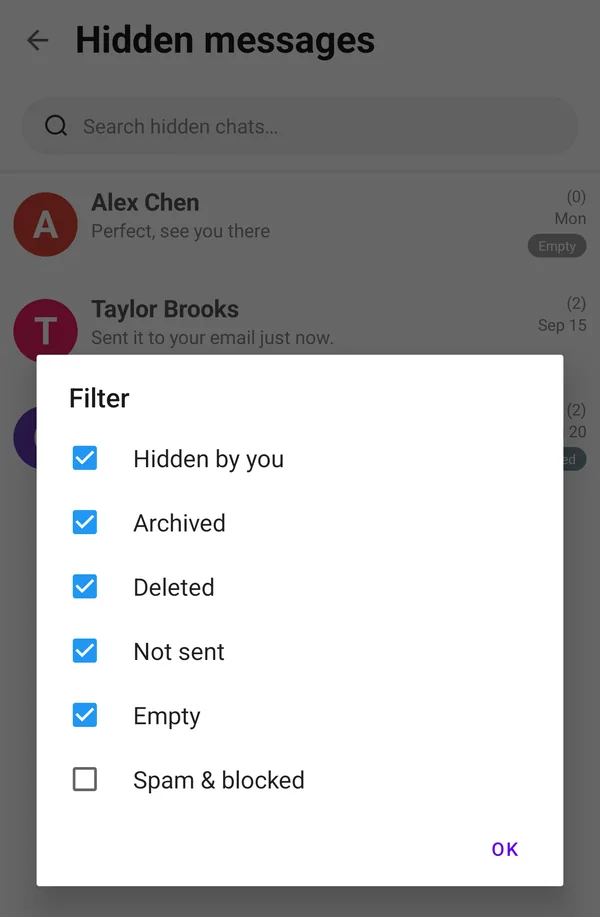
- Spam & blocked messages (caught by your phone’s spam filter, or from blocked numbers)
- Anything you hid yourself in the app
Reading this on your phone? Tap the link below to jump straight to the Hidden messages window:
📱 Open Hidden Messages in the app
If nothing happens when you tap the link, make sure SMS Backup, Print & Restore is updated to the latest version, or follow the manual steps below.
To open it on your phone:
Or open it manually:
- Open SMS Backup, Print & Restore.
- On the Chats screen, tap the three-dot menu (⋮) in the top-right corner and tap Hidden messages.
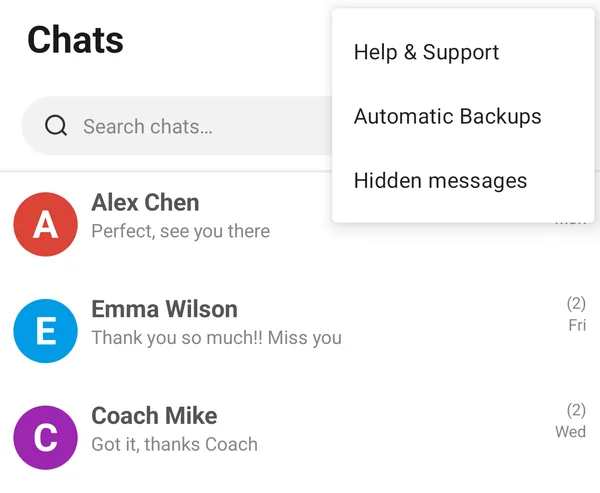
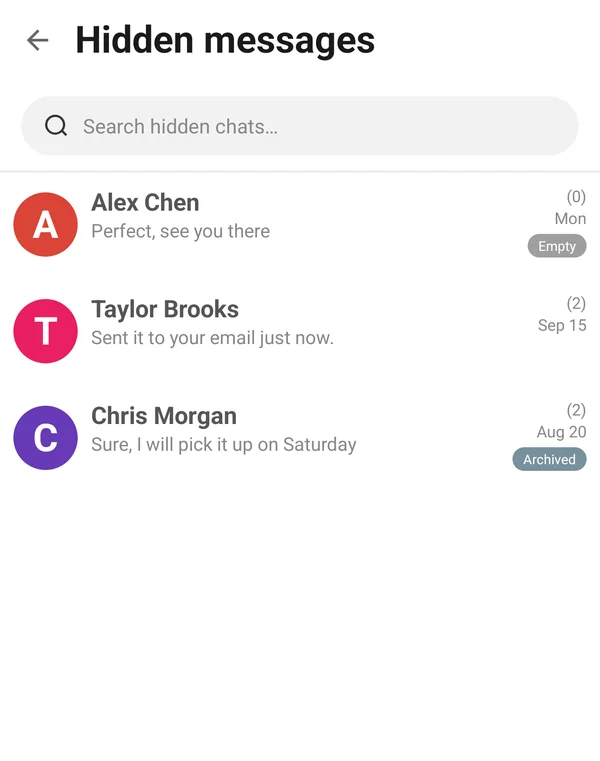
- Each hidden conversation has a label that shows why it is hidden, such as Archived or Empty. Conversations you hid yourself have no label.
- Tap Filter (top right) to choose which kinds are shown. Spam & blocked is turned off by default, so check it if you are looking for a spam or blocked message.
- Found your messages? Select them and tap Unhide. They move back to the main list and are included in your backups and exports.
Step 2: Clear the app’s cache
If a conversation opens but stops at a certain date, or the newest messages are missing, the app may be showing an old saved copy. The app keeps a copy of large conversations so they open faster, and clearing it makes the app read everything again from the phone.
- On the Chats screen, tap the Customize icon (the sliders at the top).
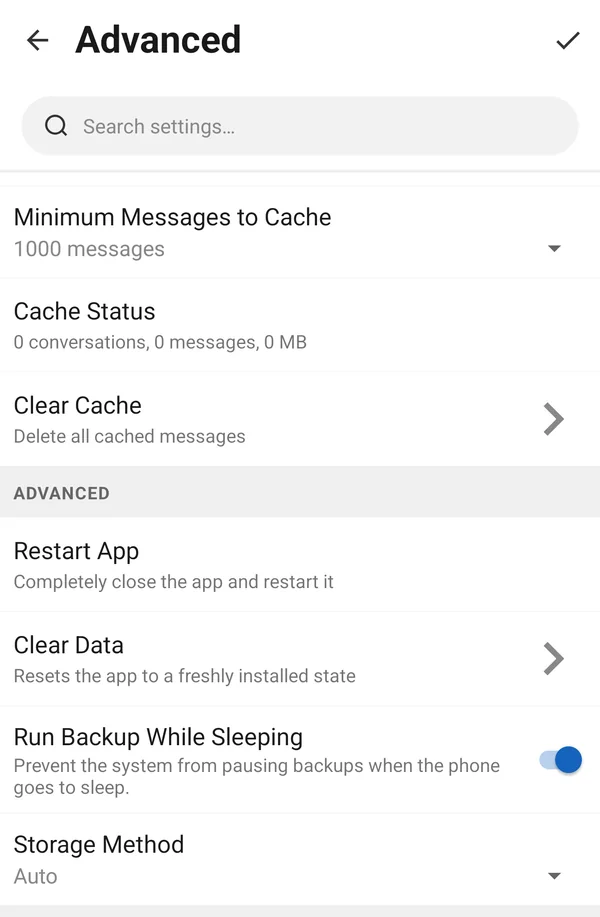
- Open Advanced and scroll down to Clear Cache. Tap it, and confirm if asked.
- Open the conversation again.
Step 3: Turn on “Keep as default SMS app”
Since September 2026, Google Messages marks many newer messages so that Android shows them only to the default SMS app. Backup apps, including this one, don’t see them: the conversation moves to the top of the list, but the newest messages aren’t in it. The Keep as default SMS app setting makes SMS Backup, Print & Restore your default SMS app while you back up, so it can read them.
- On the Chats screen, tap the Customize icon (the sliders at the top).
- Open Advanced, turn on Keep as default SMS app, tap I understand, turn on, and allow the app to become your default SMS app.
- Open the conversation and swipe down to refresh it. If messages are still missing, tap Clear Cache (Step 2) and open it again.
- Make your backup, export or printout.
- Go back to Advanced and turn Keep as default SMS app off. This switches you back to Google Messages.
📱 Open Keep as default SMS app in the app
Turn it off as soon as you’re done. While it’s on, Google Messages can’t send messages or use RCS chats, and picture or group messages you receive may not be saved. To include your newest messages in a later backup, turn it on again just for that backup.
This setting needs version 5.1.0.1 or later. If the messages are still missing while it’s on, they aren’t stored where any app can read them: turn the setting off and use RCS Web Sync (Step 5).
Step 4: Check whether the messages can be read by any app
SMS Backup, Print & Restore reads the messages that Android stores for all apps: SMS, MMS, and the RCS messages that your messaging app shares with Android. Some messages are kept elsewhere, where no other app can read them:
- WhatsApp, Signal, Messenger and similar apps are not text messages, so they never appear here.
- RCS / “chat” messages (also called Advanced or Enhanced Messaging) are sometimes stored only inside the messaging app, especially end-to-end encrypted chats in Google Messages.
- Drafts, and messages sent from other devices such as a tablet or a carrier’s web messaging, are not shown.
To find out which case you’re in, install a second SMS app such as Textra SMS from Google Play (installing it doesn’t change your default messaging app) and open the same conversation in it.
The messages appear in Textra
Then SMS Backup, Print & Restore should be able to read them too, and this is probably a problem in our app. Please contact support so we can look into it.
The messages don’t appear in Textra either
Then they are stored where third-party apps can’t reach them. If you use Google Messages, RCS Web Sync (Step 5) can still copy them to your phone. With other messaging apps, turning off RCS (see below) makes sure future messages are saved normally.
Step 5: Recover RCS and encrypted messages with RCS Web Sync
If the missing messages are in Google Messages on your phone but not in SMS Backup, Print & Restore — for example RCS or end-to-end encrypted chats, or conversations that seem to stop at a certain date — RCS Web Sync can bring them in. It reads your conversations from Google Messages for Web and copies them to your phone. After a sync they appear in the app like any other message and are included in your backups, exports and prints.
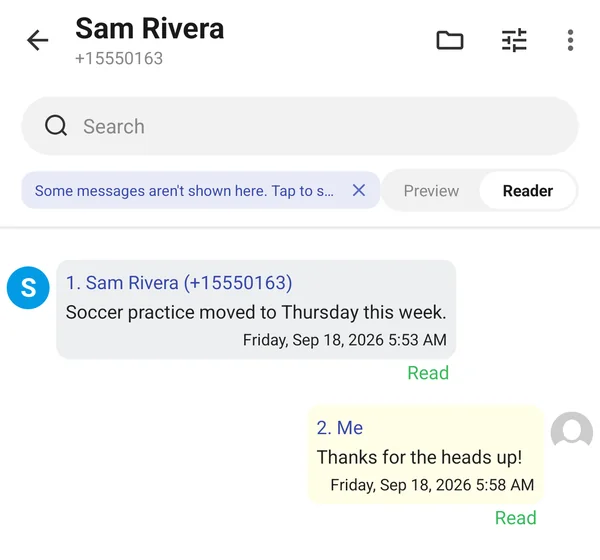
When the app notices that messages are missing from a conversation, it shows “Some messages aren’t shown here. Tap to sync them.” at the top of that conversation. Tapping it opens RCS Web Sync.
What you need:
- Google Messages as your default messaging app
- A computer with Google Chrome or Microsoft Edge, or Lemur Browser on your phone if you don’t have a computer
- A few minutes for the one-time setup — the app walks you through it step by step
Reading this on your phone? Tap the link below to open RCS Web Sync:
📱 Open RCS Web Sync in the app
If nothing happens when you tap the link, make sure SMS Backup, Print & Restore is updated to the latest version, or follow the manual steps below.
To open it on your phone:
Or open it manually:
- Open SMS Backup, Print & Restore.
- Tap the Customize icon (the sliders at the top of the Chats screen).
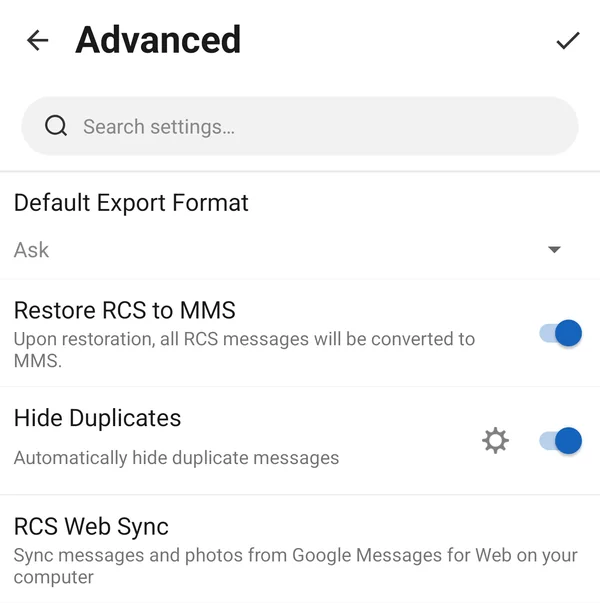
- Open Advanced and tap RCS Web Sync.
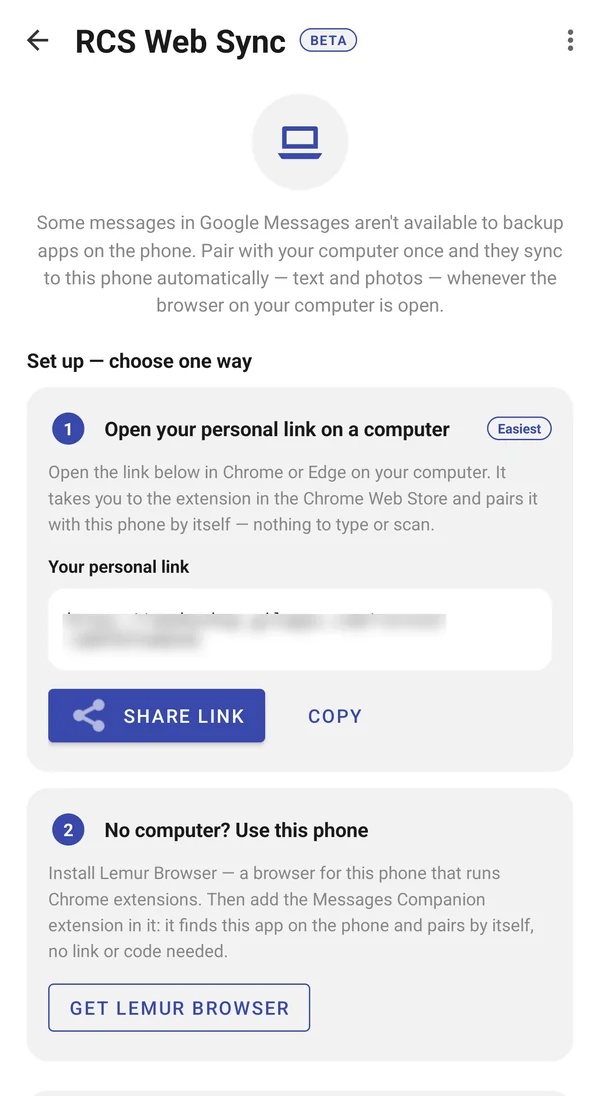
- Choose one way to connect and follow the steps on the screen:
- Open your personal link on a computer (easiest): send the link to your computer with Share link, open it in Chrome or Edge, and add the free Messages Companion extension. It pairs with your phone by itself.
- No computer? Use this phone: install Lemur Browser and add the Messages Companion extension in it.
If the sync finishes but the messages don’t show up yet, clear the app’s cache (Step 2) and open the conversation again.
RCS Web Sync only covers Google Messages. It can’t recover messages from other apps (such as WhatsApp) or messages that were deleted from Google Messages. The feature is in beta — if something doesn’t work, tap Send feedback on the RCS Web Sync screen or tell us in the support chat.
Turn off RCS so future messages are saved normally
Standard SMS and MMS messages always appear in SMS Backup, Print & Restore. If your missing messages were RCS chats and you don’t use Google Messages (or don’t want to use RCS Web Sync), you can turn off RCS so that messages you send and receive from now on are saved as SMS/MMS. This does not bring back older RCS messages.
Google Messages:
- Open Messages.
- Tap your profile picture (or the three-dot menu) and tap Messages settings.
- Tap RCS chats (called Chat features on some phones).
- Turn off Turn on RCS chats.
Other messaging apps: look in the app’s settings for Chat features, Advanced Messaging or Enhanced Messaging and turn it off. On some carrier apps (for example AT&T Messages) the app must be your default messaging app before you can change this setting.
Contact support
If none of the steps above help, we’re happy to look into it. To help us find the cause quickly, please tell us:
- Whether you checked the Hidden messages window, cleared the cache and tried Keep as default SMS app (Steps 1–3).
- Whether the missing messages appear in Textra (Step 4).
- Whether the missing messages are text (SMS), pictures (MMS), chat (RCS) messages, or a mix.
- Which messaging app you use, your phone model and your mobile carrier.
- Anything the missing messages have in common, such as one contact, a date range or group chats.
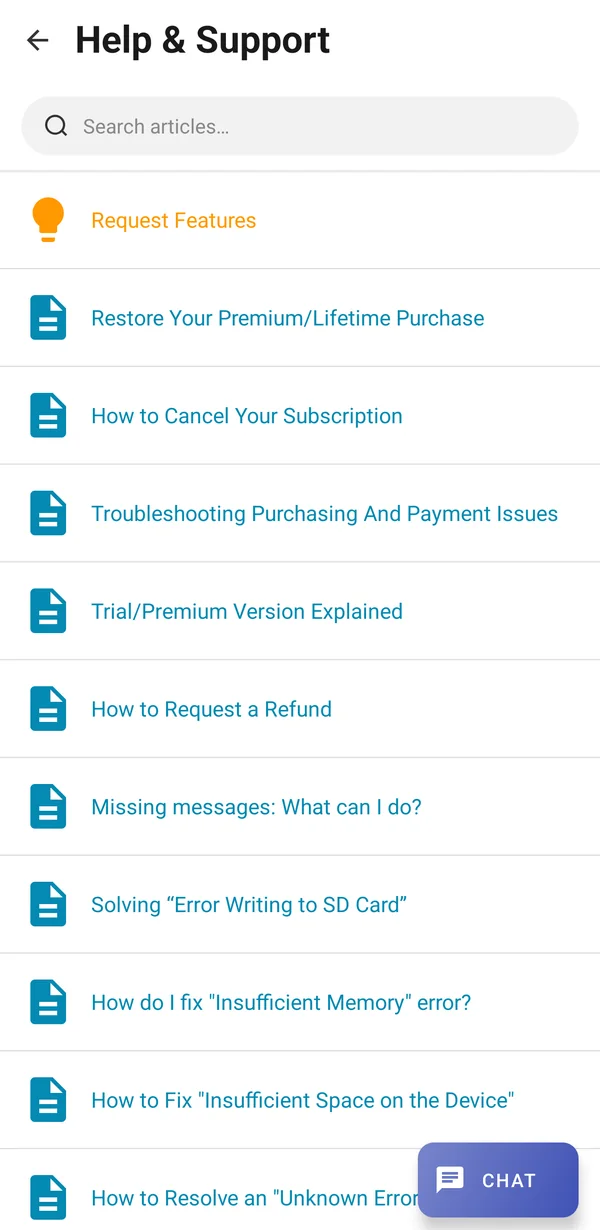
To open the support chat: on the Chats screen, tap the three-dot menu (⋮), tap Help & Support, and then tap Chat at the bottom right.