3 min read

Troubleshooting Purchasing And Payment Issues

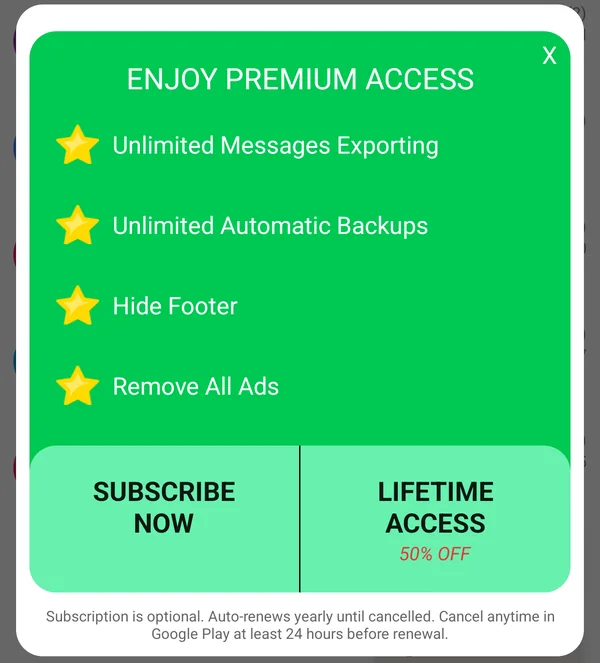
Premium Upgrade Benefits

Upgrading to Premium unlocks unlimited message sending and removes all ads from the app. It's a one-time payment or Subscription that permanently removes all usage limitations.

If you’re experiencing any issues with purchasing the Premium upgrade, the following article will guide you through possible solutions.


Index:

  1. The app gives an error when I try to purchase
  2. I purchased the app, yet the premium access has not been unlocked
  3. Downloading the app the second time, on the same or a new device
  4. How to contact support to deal with this issue


1. The app gives an error when I try to purchase

If the app gives an error when trying, please contact support and ask for an alternative purchase method.


2. I purchased the app, yet the premium access has not been unlocked

Most times in-app purchases are immediate, however, sometimes it can take up to 24 hours to be delivered. If you purchased the premium version and the premium functionality is still locked, wait 24 hours and check again. If it’s still not there, try the troubleshooting steps below. If the steps don't solve the problem, contact support.


Step 1: Check your connectivity.

Check that you have a WiFi or mobile data connection that is active and working. A simple way to do this is by searching the web. Click on this link to search Google for cats. If you see information on cats, your internet connection is probably not the issue. 

If that search doesn’t work, connectivity might be a problem. Try to fix your connectivity issues.


Step 2: Double-check if your purchase went through

If your payment didn’t go through properly you won’t receive the upgrade. Check if it went through using the Play Store app or Google Play on the web:

Use the Play Store app:

  1. On your Android phone or tablet, open the Google Play Store app Google Play.
  2. Tap Menu Menuand thenAccount.
  3. Tap Order history to review your orders. 

Use a web browser:

  1. On your computer, go to your Google Play account.
  2. Scroll down to order history.
  3. Look for the in-app purchase.


If your payment is declined, can't be processed, or is listed as "not eligible":

Go here: Payment Troubleshoot


Step 3: Force a full restart of the app

Try closing and restarting the app.

  1. Open the app
  2. on the main screen, o n the top left, tap Menu Menu
  3. Tap Configuration 
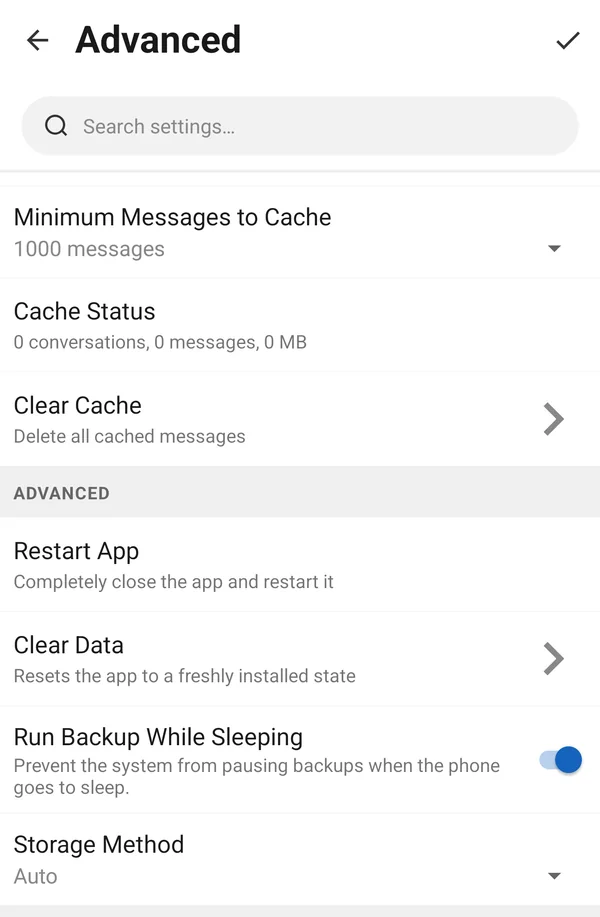
  4. Scroll down and choose Advanced 
  5. Choose Restart App.

Step 4: Restart the device

Sometimes restarting the device can help fix in-app purchase issues. To restart:
  1. On your mobile device, hold down the power button. 
  2. Tap Power off or Restart (depending on your device this text may be different). 
  3. If needed, hold down the power button again to turn the device back on. 
  4. Wait for the device to start back up. 
  5. Re-open the app and check if you can now able to share more than 4 messages.

Step 5: Update the "Google Play Play Store App"

In-app purchases work best when you are running the latest version of the Play Store. To update the app:

  1. On your Android phone or tablet, open the Google Play Store app Google Play.
  2. Tap Menu Menuand thenSettings Settingsand thenBuild version or Play Store version.
    • Build version or Play Store version is usually at the bottom of the settings list. 
  3. The app will update, or notify you that your version is up to date. 

Step 6: Make sure the date and time are correct.

If you have recently changed the date and time on your device, make sure the date and time are correct:

  1. On your Android phone or tablet, open your device's Settings app Settings.
  2. Tap Date & time.
  3. Look for "Automatic date & time" and "Automatic time zone" and check if they’re switched on or off. Then follow the relevant steps below. 
  

If "Automatic date & time" and "Automatic time zone" are turned off

  1. Turn on both the date & time and time zone settings. 
  2. Wait a few minutes, and check to see if your problem is fixed. 
  3. If it’s not, try restarting your device and check again. 

If "Automatic date & time" and "Automatic time zone" are switched on

  • If both of these settings are on, the date and time probably isn’t your issue. Check your connectivity and restart your device, or try the other troubleshooting steps. 

Step 7: Contact support.

If none of the above steps corrected the issue, please contact support


1. Downloading the app the second time, on the same or on a new device.

Impotent: if you are downloading the app for the second time or on a second device,  you need to make sure that the account you are using for downloading the app is the same account you used for purchasing it. 
 
To download the app from a specific account
 

Switch accounts in a Google Play app

  1. Open a Google Play app.
  2. Tap Menu Menu.
    • If you don't see the menu icon in the top left corner, tap back until you're on the app home screen. 
  3. Look for the name and email address of the account you're using at the top of the screen.
  4. Tap the Down arrow Down Arrow.
  5. Tap the account you want to use.

Switch accounts on the Google Play website on a mobile device

  1. Open a web browser (like Chrome or Safari) go to play.google.com. 
  2. On the top left, tap Menu Menu
  3. Next to your profile picture and name, tap Edit Edit.
  4. Select a different account. If you don't see one of your accounts listed, tap Manage accounts

Switch accounts on the Google Play website on a computer

  1. Go to play.google.com
  2. In the top right, click on your profile picture. 
  3. Select a different account. If you don't see one of your accounts listed, click Add account
 

If none of the above steps corrected the issue, please contact support


How to contact support to deal with this issue

  1. Open the app
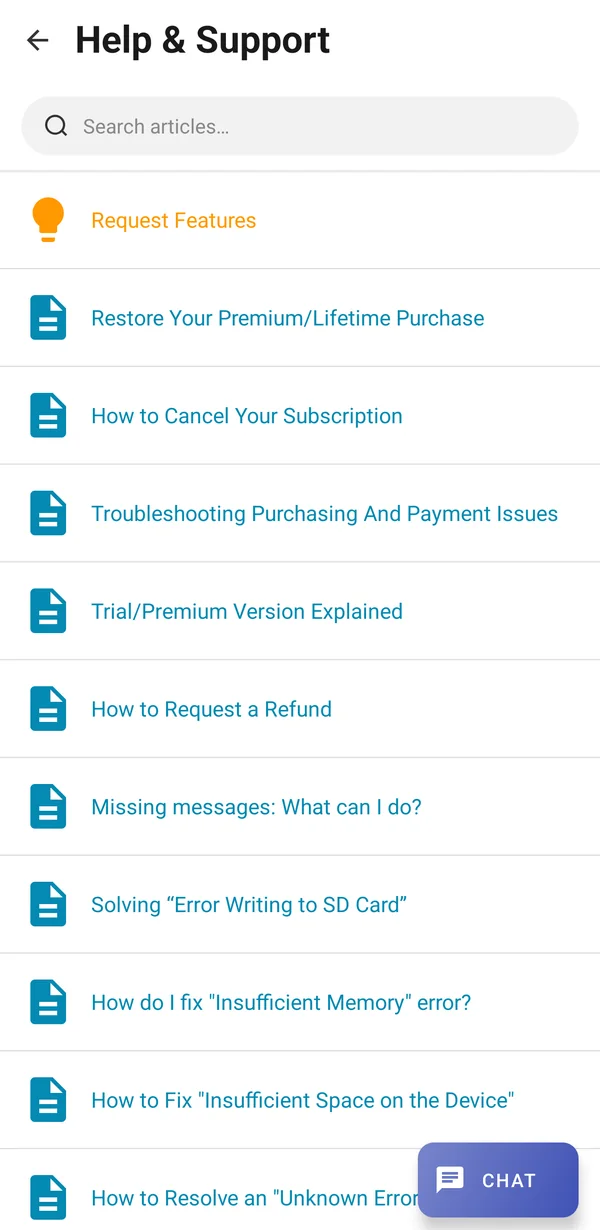
  2. In the 3-dotted menu on the top-right corner, select help & support
  3. Tap on the "support icon on the bottom right"
Was this article helpful?
Thanks for your feedback!